

Three 4K camera angles stacked on a Resolve timeline. Magic Mask tracing a subject through a handheld shot, noise reduction nodes piling up, and you just want to hit export without your computer turning into a jet engine. If you spend your afternoons dragging scrub bars back and forth in Premiere Pro or DaVinci Resolve, your Mac isn’t just a machine—it’s your entire workspace. With Apple’s latest desktop refresh, choosing the right chip matters more than ever. Let’s cut through the marketing specs and find the Mac that actually survives your daily workflow.
The $899 Gateway: Apple Mac Mini (M6) for 1080p & Light 4K
If your typical project is a two-camera 4K interview with a light grade and a lower third, wrapped before lunch, the M6 Mac Mini is the absolute sweet spot. At just $899, it handles Final Cut Pro workflows effortlessly. Memory tops out at 32 GB, so the 16 GB standard configuration is fine for daily vlogs or YouTube cuts, but keep in mind that heavy noise reduction in Resolve will hit that ceiling fast.
With 170 GB/s of memory bandwidth and standard 2.5 Gb Ethernet, it’s a steal for moving footage directly off a NAS. Just don’t expect to run eight streams of 4K simultaneously without breaking a sweat. For indie creators on a budget, this is the machine I’d stop deliberating over.
The Sweet Spot: Mac Mini (M5 Pro) for Multicam Premiere Workflows
Same aluminum shell, entirely different engine underneath. Jumping to the M5 Pro at $1,699 gets you an 18-core CPU, a 64 GB memory option, and 307 GB/s of bandwidth. Three Thunderbolt 5 ports mean you can hook up external RAID enclosures without a messy hub.
The real secret? The second media engine. Fixed-function silicon handles H.264 and HEVC decode, and buying up a tier cuts your export times drastically—something Apple’s marketing won’t explicitly tell you. Four-stream 4K multicam runs buttery smooth here. Keep in mind, sustained exports will ramp up the fans due to the compact chassis. If you’re rendering for hours daily, the thermal constraints of a mini might push you toward a larger machine.
The Editor’s Powerhouse: Mac Studio (M5 Max) for Resolve & Magic Mask
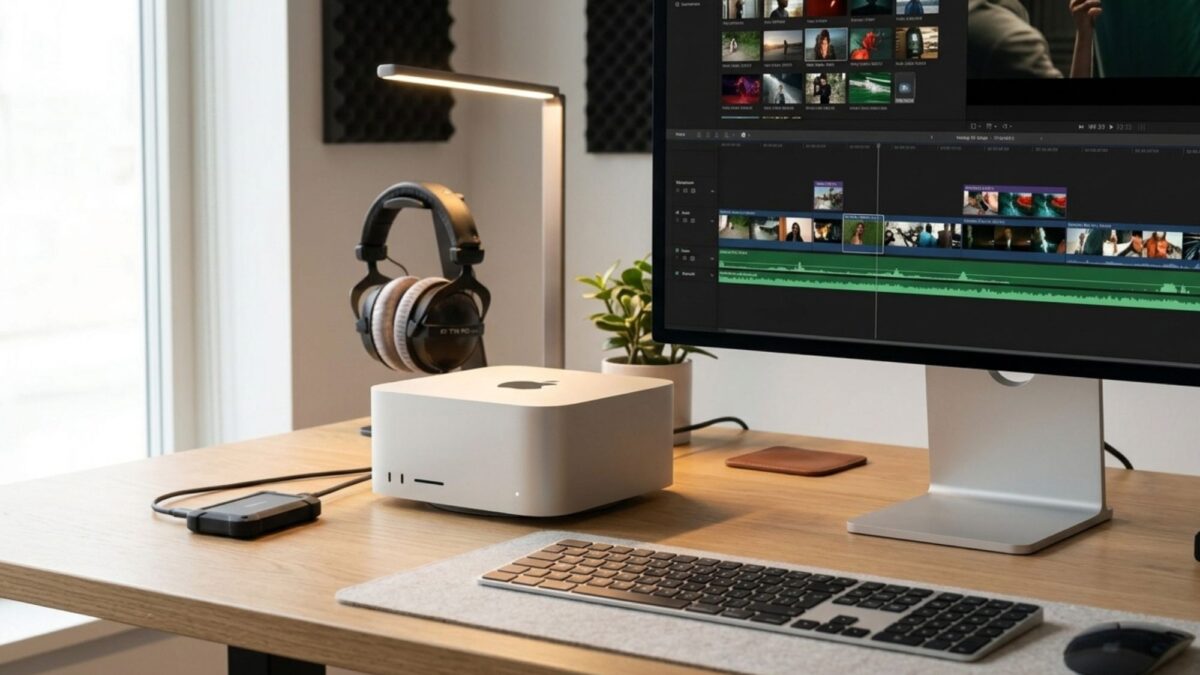
For 4K and 6K color grading, this is the one I’d buy with my own money. Starting at $2,499, the Mac Studio with M5 Max brings an up-to-40-core GPU that runs 50% faster than last year’s model. Magic Mask is up to 3x faster than the M4 Max, turning a tedious, hours-long grade into a quick coffee break.
You get up to 128 GB of unified memory, 614 GB/s bandwidth, and a Gen 6 SSD that doubles read/write speeds. Six Thunderbolt 5 ports and 10 Gb Ethernet handle shared storage and high-bitrate footage like a dream. The Studio’s larger enclosure is the real MVP here; it manages sustained heat without throttling your clocks, meaning your 40-minute exports stay fast from start to finish. The only trade-off? No SD card slot up front, so you’ll want a reliable dongle.
The Heavyweight Champion: Mac Studio (M5 Ultra) for 8K ProRes RAW
$5,499 answers exactly one question: Can it play the 8K ProRes RAW timeline? The answer is a resounding yes. It pushes up to 33 streams of 8K ProRes 422 at 30 fps, thanks to double the encode and decode blocks of the M5 Max. Redshift scene rendering hits 1.7x the speed of the M3 Ultra.
With up to 512 GB unified memory and 1.2 TB/s bandwidth, memory bottlenecks simply disappear. Genlock over USB-C now syncs displays with camera capture, including the new iPhone 17 Pro. This is for post-production houses where time is literally money.
Edit On Location: MacBook Pro 14-inch (M5 Pro)
Need to cut on location and dock at home? The 14-inch M5 Pro starts around $1,999 with 24 GB memory and 25% more multicore performance than the M4 Pro. It handles 4K H.265 and ProRes away from the desk beautifully. Want faster exports? The M5 Max model adds a second media engine, halving long render times. If you’re shooting 6K RAW on set, this is the cheapest route to professional-grade media engines without carrying a tower.
Building Your Edit Bay: Storage & Workflow Tips
Setup your workspace wisely. I always put the budget into external NVMe drives rather than Apple’s internal SSD upgrades. A fast Thunderbolt 5 enclosure delivers similar speeds without Apple’s steep per-terabyte premium. Always keep a third of your boot drive free so macOS has breathing room for scratch files.
In Premiere Pro, drop playback to half resolution during rough cuts to keep the timeline responsive. In Resolve, generate optimized media before your timeline becomes a slog, then lean on render cache once you start grading. These small workflow tweaks keep your system humming, even when your project is stacked with heavy effects.
Final Thoughts
Export times depend on media engines, not just core counts. Whether you’re editing 4K multicam or finishing 8K RAW, Apple’s 2026 lineup has a tier that perfectly matches your timeline. Skip Apple’s internal SSD upgrades and grab a fast Thunderbolt 5 NVMe drive instead. If you’re a freelance creator, the M6 Mini is your perfect entry point. Pros tackling heavy color grades should jump straight to the Mac Studio M5 Max. Don’t let your hardware bottleneck your creativity. Pick the Mac that matches your footage, and hit export with absolute confidence.